
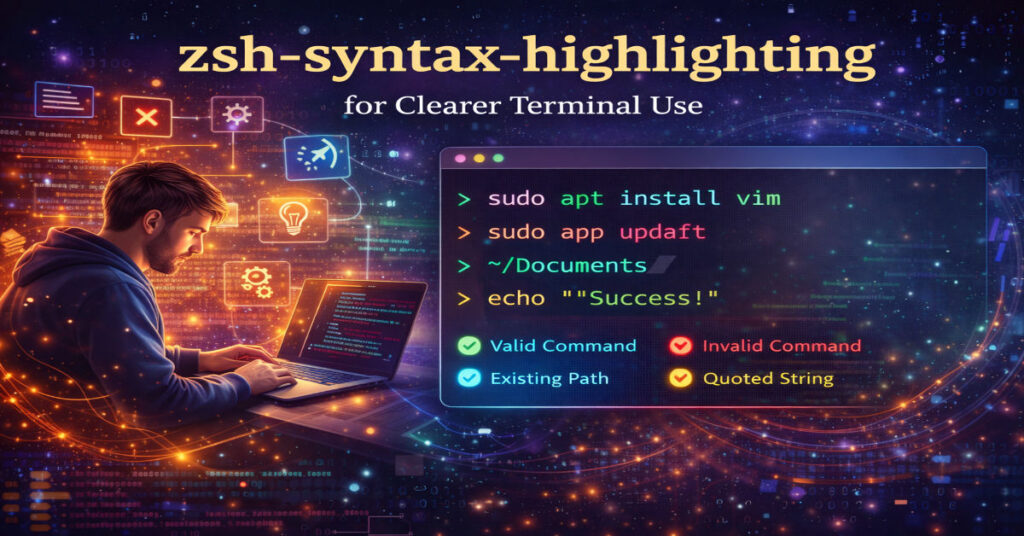

I approach zsh-syntax-highlighting as one of those tools that quietly changes how the command line feels once you start using it. When I first began working extensively inside the terminal, I realized that most errors were not caused by lack of knowledge but by small mistakes that were hard to spot quickly. Missing flags, wrong paths, or typing a command that simply did not exist were common. zsh-syntax-highlighting addresses that exact gap. It adds visual feedback to the shell in real time, helping users understand what they are typing before they press Enter. In this article, I explain zsh-syntax-highlighting in depth, covering what it is, how it works, how to install and configure it, and why it has become a standard enhancement for modern Zsh environments.
Understanding the Core Purpose of zsh-syntax-highlighting
zsh-syntax-highlighting is a Zsh plugin that highlights commands as you type them in the terminal. The highlighting is based on syntax validity rather than output. This means the plugin evaluates your input in real time and applies colors depending on whether the command, arguments, paths, or operators are valid, invalid, or incomplete.
The primary purpose is prevention rather than correction. Instead of discovering mistakes after executing a command, users see visual warnings immediately. This reduces errors, increases confidence, and improves overall command line efficiency.
Why Syntax Highlighting Matters in the Shell
The command line has traditionally been text only. While powerful, it offers limited visual cues. zsh-syntax-highlighting introduces a layer of clarity that aligns the terminal with modern development environments.
Error Prevention
Invalid commands are highlighted differently from valid ones. This makes it easy to notice typos before execution.
Faster Learning
New users learn shell commands more quickly because they receive immediate feedback about correctness.
Reduced Cognitive Load
Visual cues reduce the need to mentally parse complex commands, especially long pipelines.
How zsh-syntax-highlighting Works Internally
Understanding how the plugin operates helps explain its strengths and limitations.
Real Time Parsing
As each character is typed, zsh-syntax-highlighting analyzes the command buffer. It checks command names, arguments, operators, and redirections.
Context Awareness
The plugin understands shell context. For example, it distinguishes between commands, file paths, flags, and quoted strings.
Integration With Zsh Line Editor
zsh-syntax-highlighting hooks into Zsh’s line editor system. This allows it to update colors dynamically without interfering with command execution.
Supported Highlighting Types
The plugin applies different styles depending on what part of the command is being evaluated.
Command Highlighting
Valid commands appear in one color, while unknown commands appear in another. This helps detect typos instantly.
Argument Highlighting
Options, flags, and parameters are highlighted based on expected patterns.
Path Highlighting
Existing paths are shown as valid, while nonexistent paths are highlighted as errors.
Quoted Strings
Quoted arguments are highlighted consistently, reducing mistakes with missing or mismatched quotes.
Default Highlighting Styles
By default, zsh-syntax-highlighting includes several predefined styles.
| Element | Typical Meaning |
|---|---|
| Valid command | Recognized executable |
| Invalid command | Command not found |
| Existing path | File or directory exists |
| Nonexistent path | Invalid file reference |
| Quoted argument | Properly enclosed string |
These defaults can be customized extensively.
Installing zsh-syntax-highlighting
Installation is straightforward, but it depends on how Zsh is managed on the system.
Using a Plugin Manager
Most users install zsh-syntax-highlighting through plugin managers such as Oh My Zsh, zinit, or similar systems. This approach simplifies updates and loading order.
Manual Installation
Manual installation involves cloning the repository and sourcing the main script in the Zsh configuration file. This method provides full control but requires manual updates.
Load Order Importance
zsh-syntax-highlighting must be loaded after all other plugins. Loading it too early can prevent it from working correctly.
Basic Configuration in Zsh
Once installed, minimal configuration is required to start using the plugin.
Sourcing the Plugin
The plugin is typically sourced at the end of the configuration file to ensure compatibility.
Default Behavior
Out of the box, zsh-syntax-highlighting works without additional settings. It immediately begins highlighting commands.
Compatibility With Themes
Most Zsh themes work well with the plugin, though some color adjustments may be necessary.
Customizing Highlighting Styles
One of the strengths of zsh-syntax-highlighting is customization.
Style Variables
Highlighting styles are controlled through style variables. Users can change colors, text attributes, and emphasis.
Accessibility Adjustments
Users with visual preferences or accessibility needs can adjust contrast and color choices.
Consistency With Editor Themes
Custom styles can be aligned with code editor color schemes for a unified workflow.
Performance Considerations
Because zsh-syntax-highlighting runs on every keystroke, performance is a common concern.
Efficiency in Practice
For most users, the plugin has minimal performance impact, even on slower systems.
Large Command Lines
Very long commands or complex expansions can introduce slight delays, though this is rare.
Optimization Through Configuration
Disabling unnecessary highlighting rules can improve performance for advanced users.
zsh-syntax-highlighting vs Other Shell Enhancements
It is useful to understand how this plugin differs from similar tools.
| Feature | zsh-syntax-highlighting | Autocompletion | Prompt Themes |
|---|---|---|---|
| Purpose | Visual validation | Input assistance | Visual context |
| Timing | While typing | On request | Static |
| Error detection | Yes | No | No |
| Learning support | High | Medium | Low |
Each tool complements the others rather than replacing them.
Use Cases for Developers
Developers benefit significantly from syntax highlighting in the shell.
Command Line Heavy Workflows
Tasks involving Git, containers, package managers, or deployment scripts become safer.
Reduced Context Switching
Immediate feedback reduces the need to recheck documentation constantly.
Safer Automation Testing
Before running destructive commands, visual cues help catch mistakes.
Use Cases for System Administrators
System administrators often work with powerful commands where mistakes can be costly.
File System Operations
Highlighting helps prevent accidental execution of invalid or destructive commands.
Scripting and One Liners
Complex pipelines become easier to read and verify before execution.
Remote System Management
Clear visual feedback reduces risk when working on production systems.
Learning Benefits for New Users
For beginners, zsh-syntax-highlighting acts as a teaching tool.
Reinforced Correctness
Seeing valid commands highlighted positively reinforces learning.
Immediate Error Feedback
Mistakes are visible without running the command.
Confidence Building
Users gain confidence faster when the shell responds visually.
Interaction With Other Zsh Plugins
zsh-syntax-highlighting is often used alongside other plugins.
Autocomplete Plugins
Autocomplete suggests commands, while syntax highlighting validates them.
History Search Tools
When recalling commands from history, highlighting confirms correctness.
Prompt Enhancements
Prompt plugins provide context, while syntax highlighting ensures accuracy.
Common Misunderstandings About zsh-syntax-highlighting
Some misconceptions can lead to confusion.
It Does Not Execute Commands
The plugin only highlights syntax. It does not prevent execution or modify behavior.
Highlighting Is Not Security
Visual cues help reduce mistakes but do not replace caution or permissions.
It Does Not Validate Command Intent
A command may be syntactically valid but still logically incorrect.
Troubleshooting Common Issues
When problems arise, they are usually simple to resolve.
Plugin Not Working
Most often caused by incorrect load order.
Colors Hard to See
Theme conflicts can be resolved by customizing styles.
Slow Response
Reducing active highlighting rules can improve responsiveness.
Advanced Customization Techniques
Advanced users can tailor behavior further.
Conditional Highlighting
Styles can be adjusted depending on environment or user role.
Custom Patterns
Users can define custom patterns for specialized workflows.
Integration With Scripts
Highlighting behavior can adapt dynamically during scripting sessions.
Security and Reliability Considerations
zsh-syntax-highlighting is passive and safe.
No Command Modification
It does not alter commands or intercept execution.
Read Only Behavior
The plugin observes input without changing shell logic.
Trusted Source Use
Using official repositories ensures reliability.
Table of Key Benefits
| Benefit | Description |
|---|---|
| Error reduction | Fewer accidental mistakes |
| Learning aid | Faster skill development |
| Visual clarity | Easier command reading |
| Workflow confidence | Safer command execution |
| Customization | Adaptable to user needs |
Long Term Value of zsh-syntax-highlighting
I see zsh-syntax-highlighting as a long term quality of life improvement rather than a trend. As command line usage grows more complex, tools that reduce friction become essential. Syntax highlighting aligns the terminal with modern expectations of usability while preserving the power of the shell. Its simplicity and reliability make it a lasting part of many professional workflows.
Final Reflections
I consider zsh-syntax-highlighting one of the most practical enhancements available for Zsh users. It does not change how the shell works, but it changes how the shell feels. By adding clarity, confidence, and immediate feedback, it transforms the command line from a place of silent risk into a more transparent working environment. For anyone who spends time in the terminal, it is a small addition with significant impact.
Click Here For More Blog Posts!
FAQs
What is zsh-syntax-highlighting used for
It highlights shell commands in real time to show whether they are valid or contain errors.
Does zsh-syntax-highlighting slow down the terminal
For most users, performance impact is minimal and unnoticeable.
Is zsh-syntax-highlighting required for Zsh
No, but it significantly improves usability and error prevention.
Can I customize the colors used by the plugin
Yes, highlighting styles are fully customizable.
Does zsh-syntax-highlighting replace autocompletion
No, it complements autocompletion by validating input visually.